
Back to Change Your Password Page
Important Note for Students
THIS PAGE CONTAINS INSTRUCTIONS WHICH APPLY TO CI EMPLOYEES ONLY.
Students must change their Dolphin Password within myCI as follows:
- Sign in to myCI
- In the "My Account" module, click the "Change Password" link.
- Follow the instructions to change your Dolphin Password.
Instructions for Employees
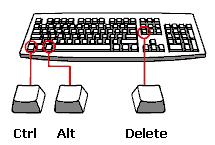
- First, you must logon to a computer in a campus computer lab using your Dolphin Name and Dolphin Password (How Do I Logon?). While viewing the Windows desktop, hold down the CTRL and ALT keys on your keyboard, then press the DELETE key.
- This will bring up the "Windows Security" dialog box.
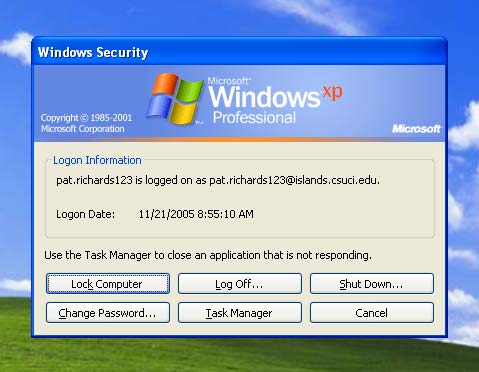
- Next, select the "Change Password..." button in the "Windows Security" dialog box.

- First, make sure the user name listed in the "User name" text field is your own. If it is not, change the user name to:
- your Dolphin Name + "@csuci.edu" (note: this is for employee use only)
- Example: pat.smithson@csuci.edu
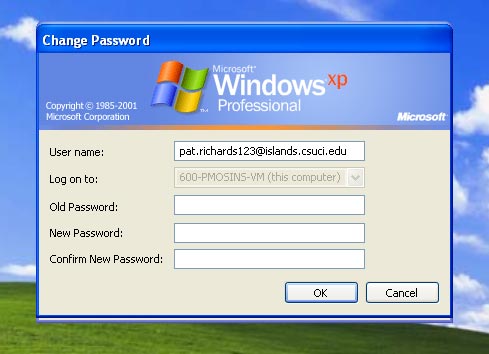
- Next, type in your current Dolphin Password in the "Old Password" dialog box. If you don't know your current Domain Password, please contact the Help Desk.
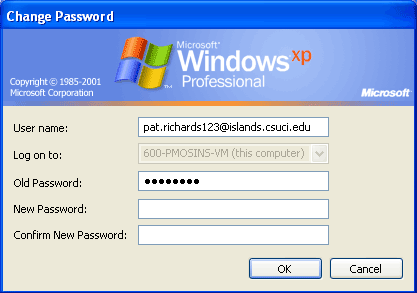
- Then, type in your new password in both the "New Password" and "Confirm New Password" fields. See Password Security Tips for information on choosing good passwords. When you are finished, select the "OK" button.
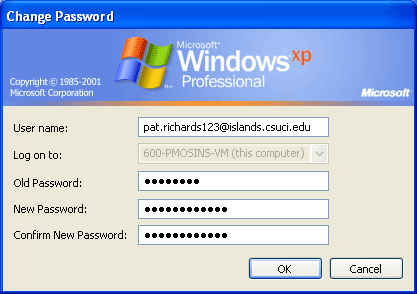
- If you have entered the password correctly, a confirmation dialog box will appear.
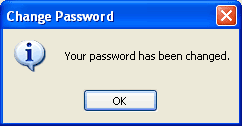
- Select the "OK" button to close the confirmation dialog box. To finish, select the "Cancel" button to close the Windows Security window. You can now use your new password to logon to the computer labs and to access other systems which use your Dolphin Password.