Finding a CI employee in the Phone Corporate Directory
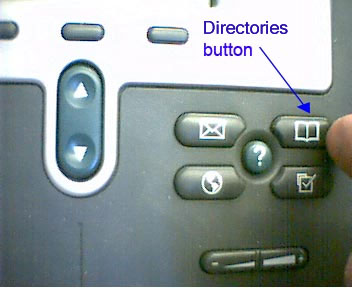
On your Cisco IP Phone, press the "Directories" button
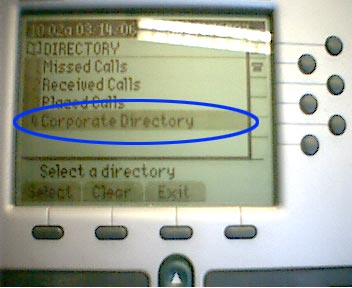
Press the number 4 on the key pad to select "Corporate Directory"
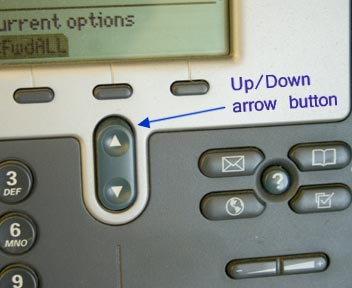
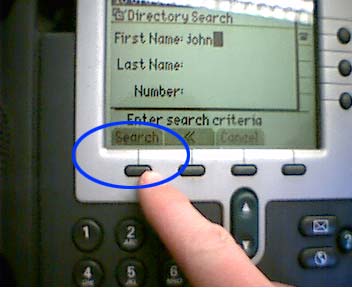
Type in the first or last name of the person you are searching for. (Use the up/down arrow button to move the cursor between first or last name field. You can use a minimum of one character in either field to perform a search. Supplying more than one character helps to narrow the search results. You can also search to find the owner of a specific extension by entering that extension in the “Number” field.)
Press the "Search" button (leftmost button directly underneath the display)
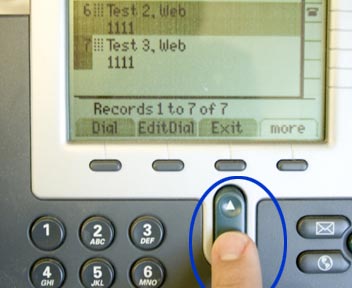
Move through the list using the up/down arrow button to find the person or office you are searching for.
When you find the person or office you are searching for, you can highlight the entry you desire using the up/down arrow button, and then press the “Dial” key (leftmost button directly underneath the display) to place a call to that location.
If you are just looking up a number, press the Exit button twice when you are done to return to the normal display screen.