Wireless Setup on a University Owned Macintosh running 10.6
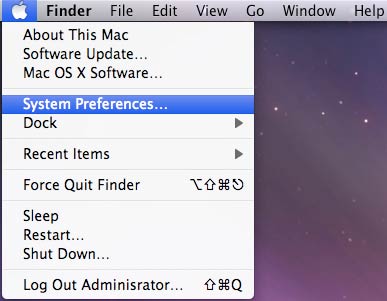
Open System Preferences located by clicking the Apple on the top left hand side of the screen, as shown in Figure 1. Figure 1: Selecting System Preferences
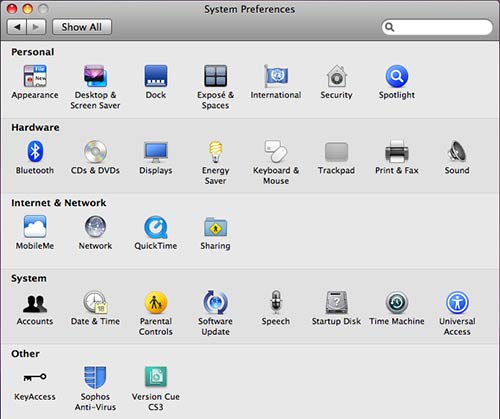
You will then be prompted with the System Preferences screen. Click on “Network” Figure 2: System Preferences
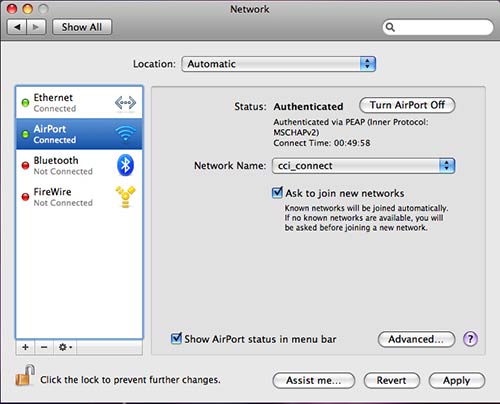
Select Airport from the Network Pane. Select “Advanced” located on the lower right hand side of the Network window above “Revert” and “Apply” Figure 3: Airport Advanced Settings
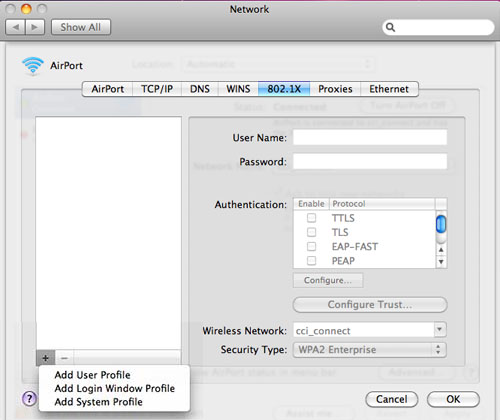
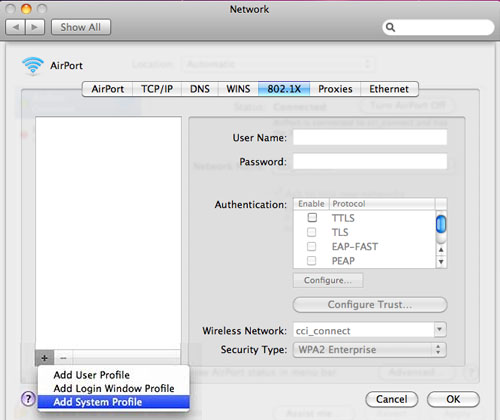
Select “802.1x” as shown below in Figure 4. Select the Plus Icon located on the lower left hand side of the “Network” pane. Figure 4: 802.1x Airport Advanced Settings
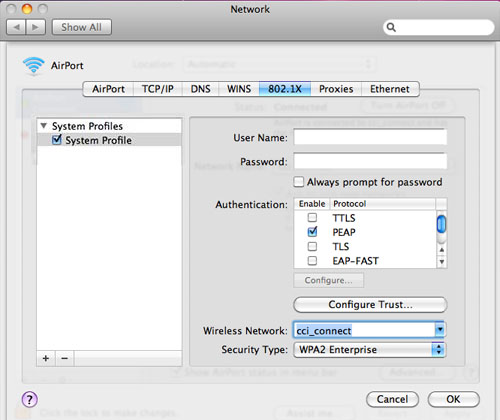
Select “Add system Profile” Figure 5: 802.1x Add System Profile