
On July 19, 2011 Web Services will be turning on a new feature in EchoCI which will make it easier for you to manage links between pages on your website. Once this new feature is enabled, you will be able to rename and move pages without fear of breaking links. The following is what you need to know about the change.
Making Links
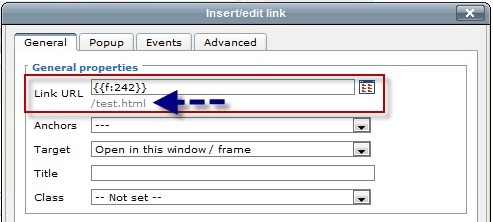
The process for adding a link is exactly the same as before, however when you place a link in a page, the link URL will show something similar to “{{ f:242 }}” or “{{ d:452 }}” without the spaces. The old style URL (the file path) will be shown under the link URL field, making it easy to confirm you are linking to the right page or file.
Renaming or Moving a page
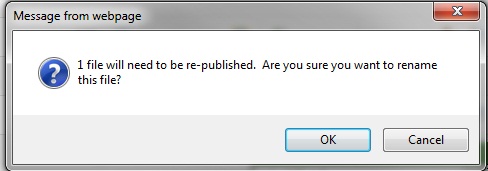
When you rename or move a page, you may be prompted with a dialog saying that some files will need to be republished. EchoCI now keeps track of links to the page you are moving or renaming, and will automatically update those links for you. In order to do that, it needs to republish the pages containt those links as well. It is safe to click “OK”.
Broken Links
If you delete a file that is linked on another page, EchoCI will let you know that you will be breaking a link. When deleting a file, it will prompt confirming you want to delete the file and will also display the number of links that will be broken.
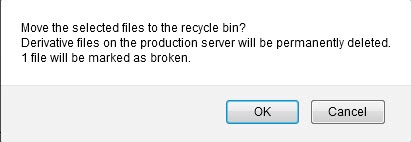
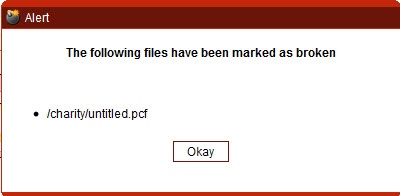
If the number of links is small, you can continue. After you hit “OK”, another dialog will be shown with a list of pages that now have broken links.
Fixing Broken Links
To help solve the issue of a directory or page being deleted, users can use the "Fix Dependencies" section, which is found under the Dashboard tab in EchCI.

In this area, it will produce a list of pages that have broken links due to external content being removed. Here, a user can preview broken pages for the page he/she has access to.
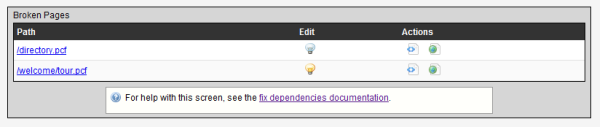
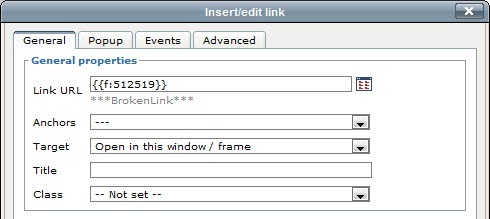
You should now go through each page on the list and fix or remove the broken link. When editing a page, it is easy to confirm a link is broken by placing your cursor on the link, clicking the “Insert Link” button, and looking at the text under the Link URL. If it says “***BrokenLink***”, you have found your broken link. Just click the link chooser on the right to select a new file.
Once the page has been edited to address the dependency issue, it will be removed from the list in this area.
Web Services
If the number of broken links is large or if you have any questions or concerns, you can contact Web Services for assistance through the IT Solution Center.